Step One • Open up MS Word. • Go to “File>>New>>” and then hit “Create” on the right side. • You should have a blank document. • You’ll want to adjust the size to 6”x9”, so go to “Page Layout” and hit “Size.” Scroll down to “More Paper Sizes” and type in 6” and then 9” in the relevant input boxes. • Free Book Cover Templates • We also don’t need the margins so big, so click again on “Page Layout”, select “Margins” and then set them to “Narrow” or .5” all around.
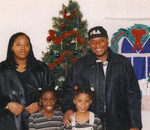
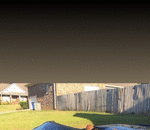
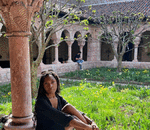
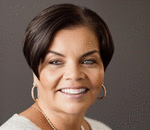
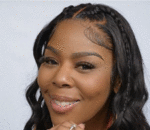
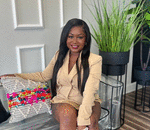
Step Two • Now we’re going to add our pictures. • I’ll take my scenery or background picture and drag/drop it into my template. I could also use “insert>>picture” and then select the image I want to use. • When the picture gets dropped in, it will automatically stretch to the margins, but you can’t move it where you want. Double click on the picture, go up to “Wrap Text” and choose “Behind Text.” • This will let you scale, resize and move the picture around. I’m going to move it down to fill up the bottom of my book cover. • Quick Tip: if you need to get a better handle on things, you can either zoom in or zoom out under “View” and then “Zoom.” • Now I’m going to take another picture, drag and drop it in, select “Behind Text,” and put it in the top half. The picture is too big, so I lose half of it under the other one (we’ll fix that later). • Now that I have two layers, I’ll want to click on “Page Layout” and open up the “Selection Pane.” • This will show all my layers, and make it easier to keep track of them. If I want to hide one for a while, I can click on that “eye” button, and show it again when I’m ready. Sometimes it can get tricky to select the right layer when I have a bunch of them. If it’s hard to select the image you want, try double-clicking right on the border of the picture, rather than the middle. • Just for fun, double click on the picture of the couple again, and hit the “Remove Background” button on the top left. It doesn’t work so well with this picture, because the background is too similar to the portraits in color, so we’d have to use “Mark areas to keep” and “Mark areas to remove” until we got it right. Then we could add something else behind it, like a nice starry night sky… • But we won’t do that right now. • The simplest way to finish up this cover would be to add a flat banner across the middle. • Quick Tip: if you need to go back and remove some changes, hit the backwards curving blue area on the very top left, next to the save disk icon.